

Automations
Automations handle repetitive project work so your team can focus on the work that matters. Plane offers two kinds of automations, both configured in Project Settings → Automations.
Built-in automations are ready-to-use toggles for common housekeeping tasks — archiving closed work items, closing stale ones, and sending deadline reminders.
Custom automations let you build your own trigger-condition-action workflows — like auto-assigning a reviewer when a work item moves to QA, or adding a label when priority changes.
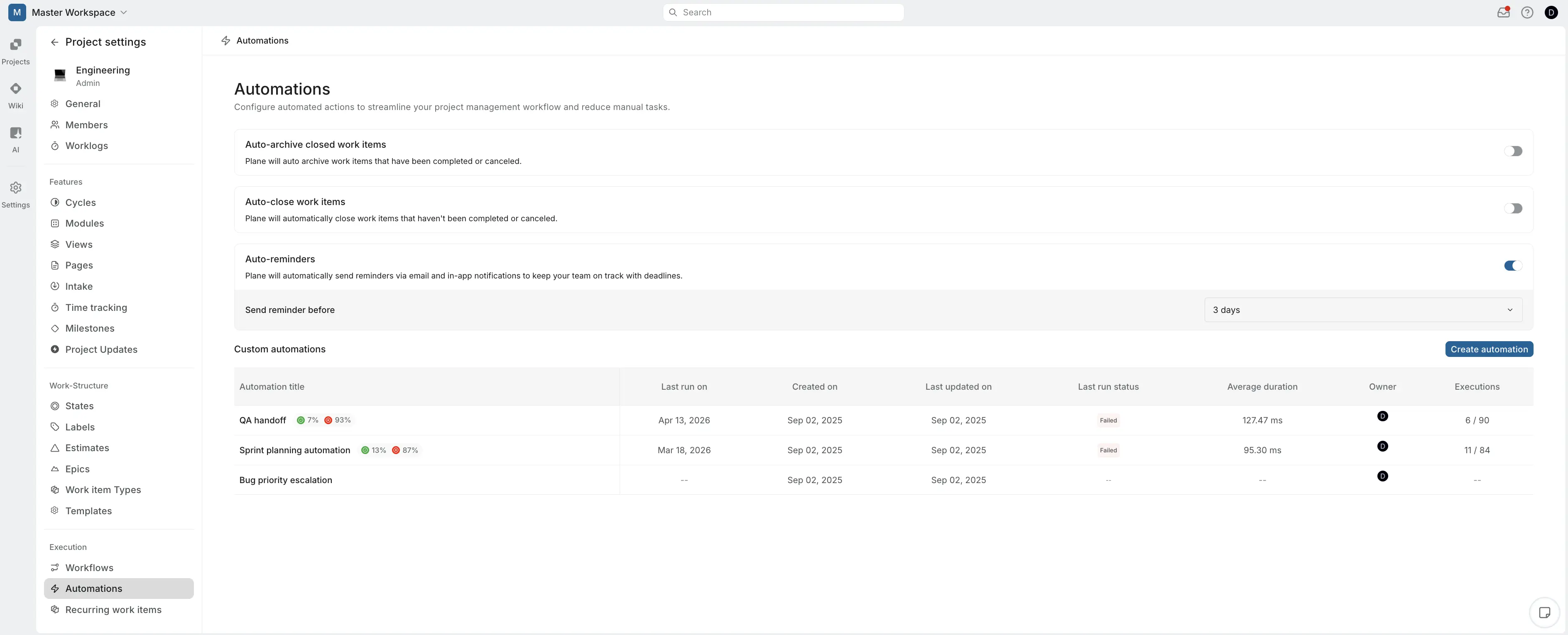
Auto-archive closed work items
Automatically archive work items that have been completed or cancelled, keeping your active views clean.
- Navigate to Project Settings → Automations.
- Toggle on Auto-archive closed work items.
- Set the Auto-archive work items that are closed for duration. Options include 1 month, 3 months, 6 months, 9 months, 12 months, or a custom time range.
Once enabled, work items that have been in a completed or cancelled state for longer than the configured duration are archived automatically. Archived work items remain searchable and accessible in the project's archived view, but they no longer appear in active lists, boards, or spreadsheets.
Auto-close work items
Automatically close work items that have been inactive — not completed or cancelled — after a period you define. This prevents stale work items from cluttering your project indefinitely.
- Navigate to Project Settings → Automations.
- Toggle on Auto-close work items.
- Set the Auto-close work items that are inactive for duration — for example, 1 month.
- Choose the Auto-close status — the state that inactive work items will be moved to (e.g., Cancelled).
Work items that haven't been updated within the configured period are automatically moved to the selected auto-close status. Only work items that are not already in a completed or cancelled state are affected.
Auto-reminders
Send automatic reminders via email and in-app notifications to keep your team on track with deadlines. When a work item's due date is approaching, assignees receive a reminder so nothing slips through the cracks.
- Navigate to Project Settings → Automations.
- Toggle on Auto-reminders.
- Set the Send reminder before timing — for example, 3 days before the due date.
Once enabled, assignees and work item subscribers receive both an email and an in-app notification at the configured interval before each work item's due date. Only work items with a due date and at least one assignee or subscriber trigger reminders.