

Manage work items
A work item is the fundamental unit of work — a task, bug, feature, or any piece of work your team needs to track. Work items are assignable, trackable, and connected to the rest of your project through properties, relations, and project structure.
Create work item
The quickest way to add a new work item is to press N then I on your keyboard. The work item defaults to the project you're currently viewing or the one you last visited.
You can also navigate to the Work items tab in the sidebar under your project and click Add Work item at the top right.
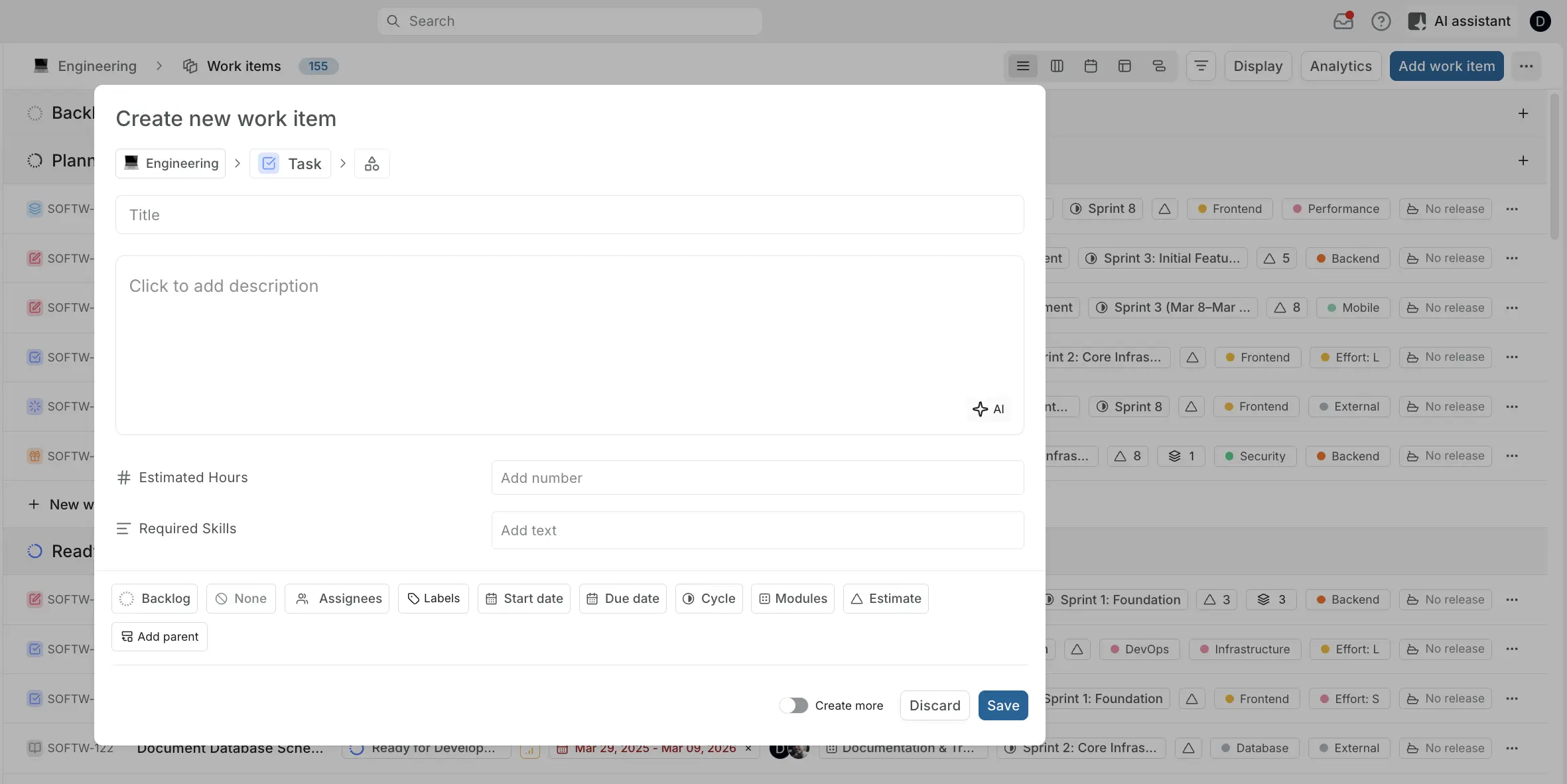
In the Create new work item modal, define the work item's attributes — title, description, assignees, state, priority, labels, dates, and more. The project's default work item type is pre-selected, and you can switch to a different type from the dropdown at the top left.
Turn on Create more to add multiple work items in sequence without closing the modal.
When you create a work item, Plane assigns it a sequential identifier based on your project (e.g., PROJ-1).
TIP
Plane automatically saves half-written work items to Drafts, so you can access them later if you close the modal before finishing.
Quick add work items
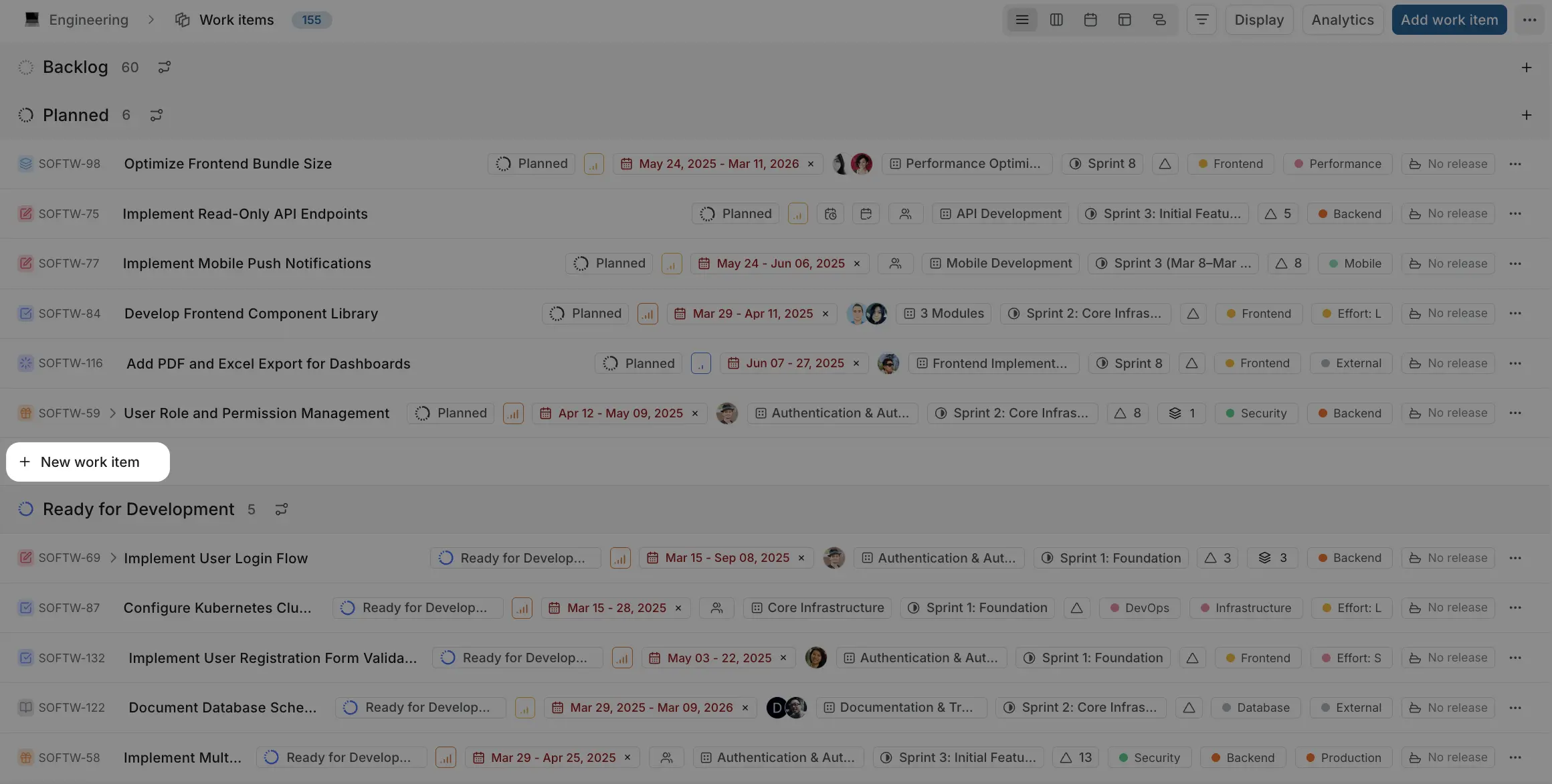
For quick capture without opening the full modal, use the inline quick-add row available in the List and Board layouts. Type a title and press Enter — the work item is created immediately with default properties, and you can refine it later.
View work item details
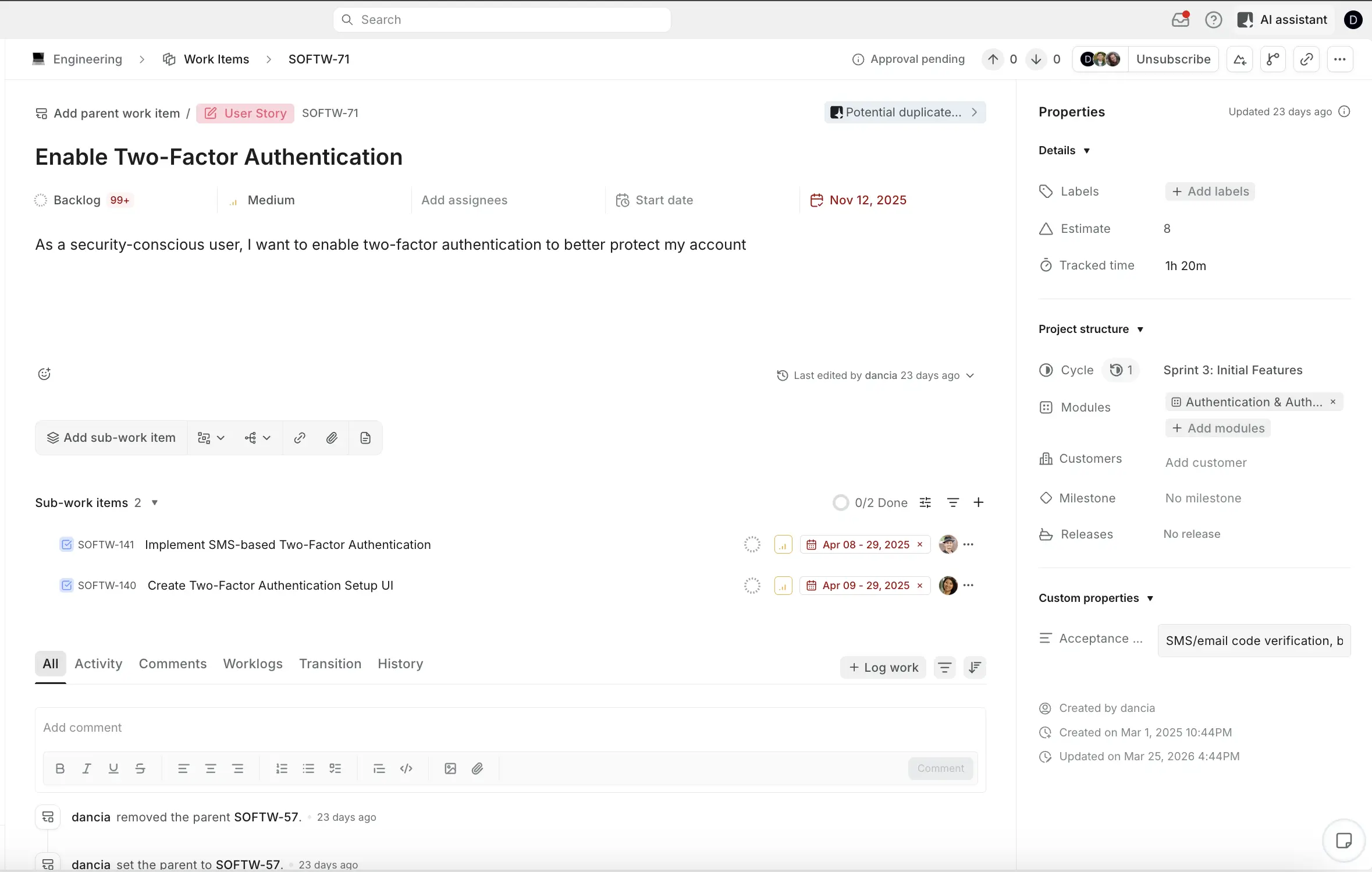
Click any work item to open its detail view. The detail view is your workspace for everything about a single work item — editing its description, setting properties, managing sub-work items, tracking activity, and collaborating with your team.
Layout options
The detail view opens in peek overview mode by default, which lets you browse work items without losing your list context. You can switch between three styles:
- Side peek (default) — opens as a panel alongside your list.
- Modal — opens as a centered overlay.
- Full screen — takes over the entire view.
Header
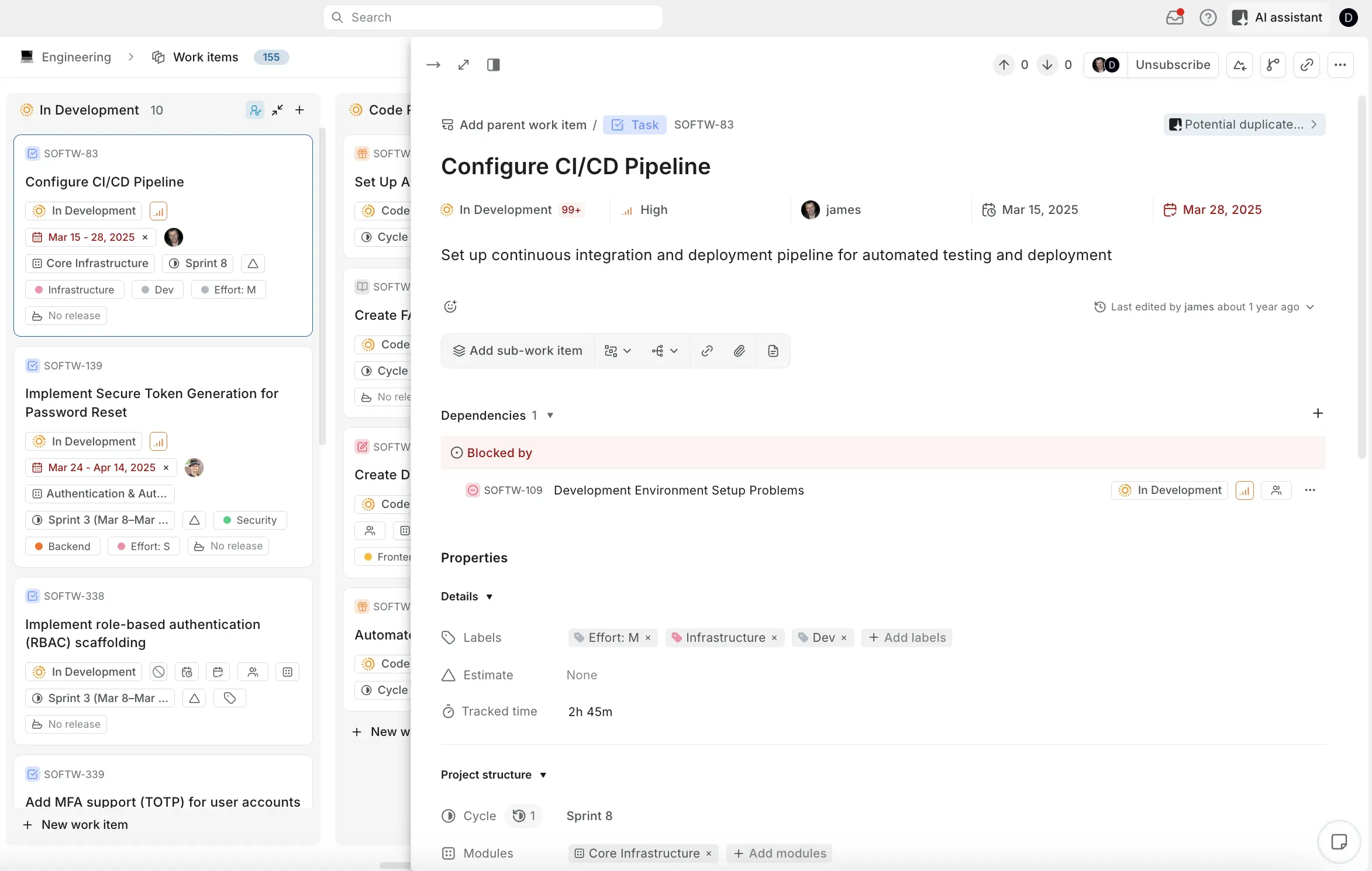
The header shows the work item's breadcrumb path (Project > Work Items > ID), the work item type badge, and several quick actions:
- Approval status — shows "Approval pending" when the work item is awaiting approval.
- Upvote / downvote — vote on work items to signal priority to your team. Counts are shown in the header.
- Subscriber avatars — shows who's subscribed to updates. Click Unsubscribe to stop receiving notifications for this work item.
Parent work item
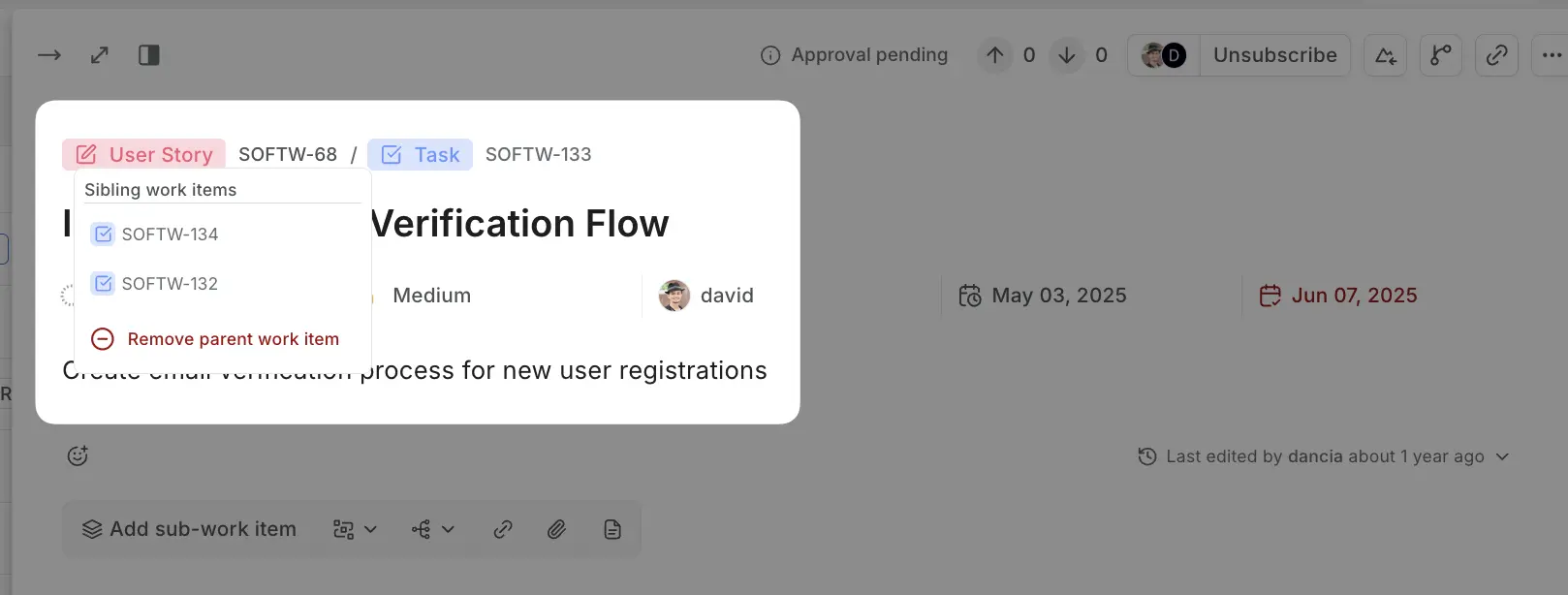
When a work item has a parent, the parent appears as a breadcrumb above the title with its type badge and ID. Click the … menu on the parent to:
- View sibling work items — see other sub-work items under the same parent.
- Remove parent work item — detach this work item from its parent.
Properties panel
The right-side properties panel is organized into collapsible sections:
- Details — state, priority, assignees, labels, start/due dates, estimate, tracked time.
- Project structure — cycle, modules, customers, milestone, releases.
- Custom properties — any custom fields defined for this work item type.
Metadata (created by, created on, updated on) appears at the bottom.
For a full reference of every property, see Work item properties.
Toolbar
Below the description, a toolbar provides quick access to:
- Add sub-work item — create or link sub-tasks.
- Relations and dependencies — connect this work item to others.
- Links — add external URLs.
- Attachments — upload files.
- Pages — link project or wiki pages.
Set work item properties
You can set various properties for a work item, including its state, assignees, priority, start date, and due date. For a complete list of all available properties, check out the Properties page.
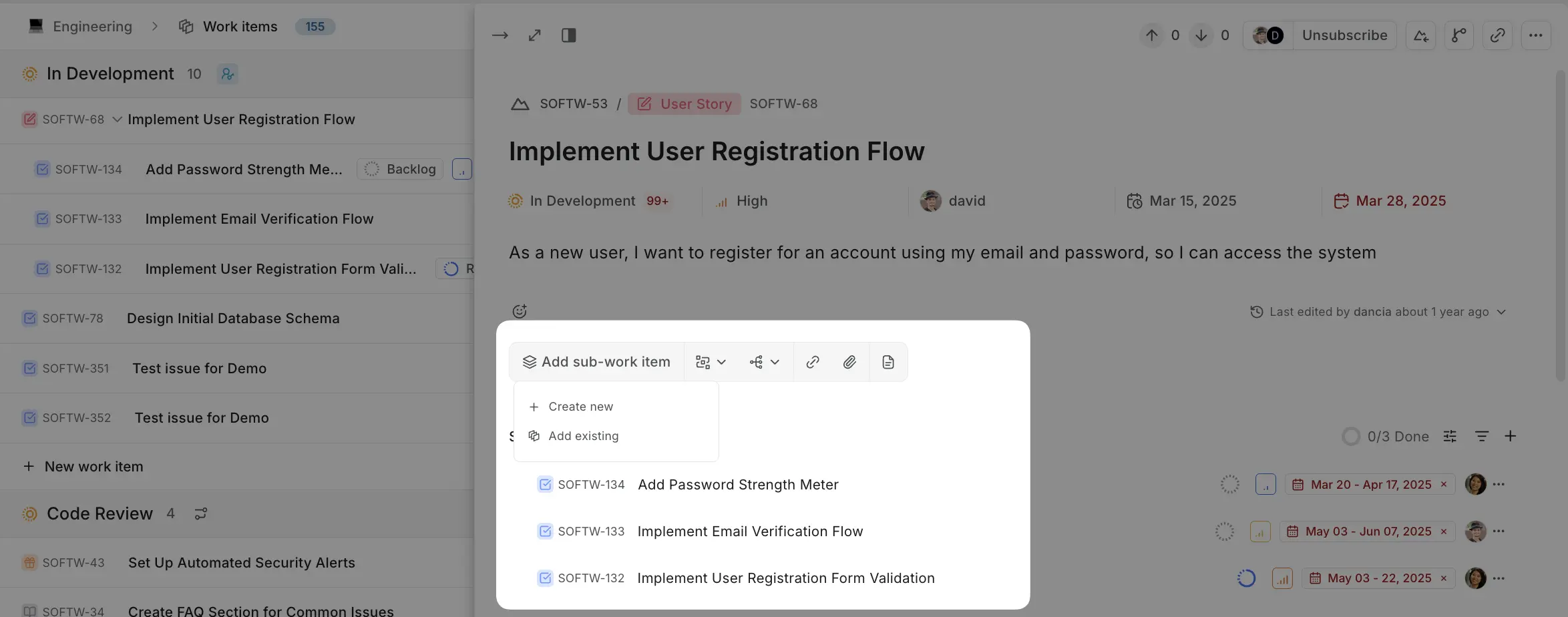
Create sub-work items
Break down larger tasks into smaller, manageable components by creating sub-work items. Sub-work items can be either newly created or linked to existing work items, giving you flexibility in organizing work.
Duplicate work items Pro
When you need to create similar work items or replicate a work item's structure and properties, Plane lets you duplicate existing work items either within the same project or across different projects.
To duplicate a work item, click the ••• menu in the work item header and select Make a copy. You'll see two options:
Copy in same project
Creates an identical work item within the current project with all the same properties, description, and settings. The new work item gets a fresh identifier and maintains the same title, description, state, and priority attributes.
Copy in different project
Duplicates the work item to another project in your workspace. This is particularly useful when you have similar tasks across multiple projects or want to move work items between teams. The copied work item adapts to the destination project's identifier format and default state.
Duplicating work items is perfect for replicating recurring tasks, or moving work between project phases while maintaining all the essential context and settings.
Add dependencies
Set up scheduling dependencies between work items using the Add dependency button. Dependencies control the order in which work happens and are visualized as connectors in the Timeline layout.
- Blocked by — this work item cannot proceed until the other work item is completed.
- Blocking — this work item must be completed before the other work item can proceed.
- Starts Before — this work item must start before the other work item starts.
- Starts After — this work item can only start after the other work item starts.
- Finishes Before — this work item must finish before the other work item finishes.
- Finishes After — this work item can only finish after the other work item finishes.
When both work items have start and due dates set, dependencies appear as visual connectors in the Timeline layout. Violated dependencies — where the dates conflict with the dependency type — are shown as red lines.
Add relations
Link work items that are logically connected using the Add relation button. Relations describe how work items relate to each other but don't enforce scheduling constraints.
- Relates To — the two work items are connected by context but don't directly affect each other's completion.
- Duplicate — this work item is a duplicate of another. The original remains active while the duplicate is typically closed.
- Implements — this work item implements or fulfills the other work item.
To create custom relation types for your workspace, see Custom relations.
Add links and attachments
You can easily add links and upload attachments to work items in Plane to provide additional context or resources.
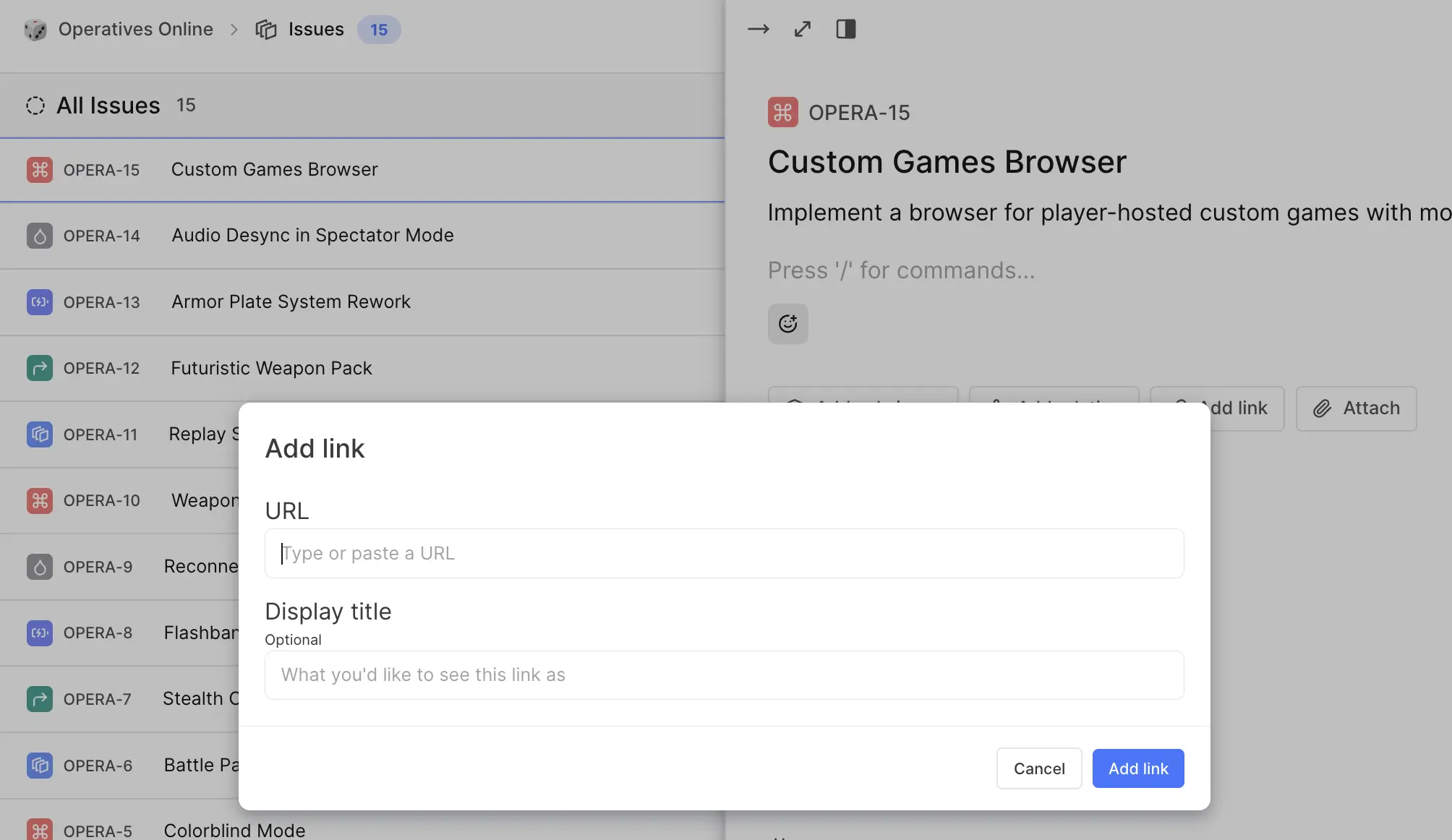
You can link to external resources, documentation, or related work items by adding URLs in the Add link modal. This helps in providing quick access to important references without cluttering the work item itself.
Plane allows you to upload different file types directly to the work item. Use the Attach button to upload attachments.
Supported file types
Images
JPEG, PNG, GIF, SVG, WebP, TIFF, BMPDocuments
PDF, Microsoft Word, Microsoft Excel, Microsoft PowerPoint, Plain Text, Rich Text Format (RTF), OpenDocument Spreadsheet, OpenDocument Text, OpenDocument Presentation, OpenDocument GraphicsAudio
MP3, WAV, OGG, MIDI, AAC, FLAC, M4AVideo
MP4, MPEG, OGG Video, WebM, QuickTime, AVI, WMVArchives
ZIP, RAR, TAR, GZIPMicrosoft Visio
Visio FilesNetpbm formats
Portable Graymap, Portable Bitmap, Portable PixmapOpenOffice Base
Database files3D models
GLTF Binary, GLTF JSON, OBJFonts
TrueType, OpenType, WOFF, WOFF2Other
CSS, JavaScript, JSON, XML, CSV, SQL
Link pages to work items Pro
Connect relevant project pages and wiki documentation to your work items to provide instant access to related context, specifications, or reference materials.
- Use the Link pages button in the work item to open the page linking modal.
- You can search through your project pages and use the Show Wiki pages toggle to include wiki documentation in your search results.
- Select multiple pages by checking the boxes next to the pages you want to link, then click Confirm to establish the connections.
Linked pages appear directly in the work item, making it easy for team members to access relevant documentation without leaving the context of their current task.
Convert work items to epics Business
Sometimes a work item grows in scope and complexity, and you realize it's actually big enough to be its own epic with multiple sub-tasks. This feature promotes a regular work item into an epic, giving you the structure and flexibility to break it down into smaller, manageable pieces.

From any work item, find the Convert to Epic option. The system will ask you to confirm since this action detaches any associated cycles, modules, and parent items. Once converted, you'll have a new epic that you can start breaking down into sub-work items and organizing however makes sense for your project.
You can also convert Epics to Work Items.
Activity and collaboration
The bottom section of the work item detail view contains tabs for tracking everything that happens on the work item.
All
Shows a unified feed combining comments, system activity, worklogs, transitions, and history in chronological order. Use this for a complete picture of the work item's lifecycle.
Activity
Shows system-generated events: state changes, assignee updates, priority changes, label additions, cycle/module assignments, date modifications, estimate changes, custom property value changes, and relation changes. Bot-initiated actions (such as cycle automations) also appear here, attributed to the automation that triggered them.
Comments
Shows only comments posted by team members. Add a comment using the rich text editor at the top — it supports formatting, mentions (@username), images, code blocks, and attachments.
Comments support threaded replies. Click the … menu on any comment and select Reply to start a nested conversation. Team members are notified when you reply to their comments.
For full details on commenting, see Work item comments.
Worklogs
Shows time entries logged against this work item. Click + Log work to add a new entry with hours, minutes, and an optional description.
For full details, see Time tracking.
Transition
Shows every state transition the work item has gone through — from when it was created to its current state. Each entry shows who changed the state, when, and the from→to states with color-coded status icons.
Between transitions, a time-in-state badge shows how long the work item stayed in the previous state (e.g., "54m", "1m"). This makes it easy to spot bottlenecks — if a work item sat in "In Review" for 3 days but only spent 10 minutes in "QA", you know where the delay was.
History
Shows a detailed changelog of every property modification made to the work item. Each entry shows the property that changed, the before→after values with matching icons, who made the change, and when. Unlike the Activity tab which shows summary text, History shows the full structured before→after for each change.
History tracks all property types including state changes, cycle assignments, estimate changes, label additions, custom property value changes, and actions performed by automation bots (e.g., "Cycle Automation Bot set the cycle to Cycle 1").
Use History to audit specific changes, trace when a due date was moved, or understand who changed an assignee.
Filter and sort activity
Click Filters in the activity area to show only specific types of activity. Use the sort toggle to switch between newest-first (default) and oldest-first ordering.
Subscribe to notifications
You’ll automatically receive email notifications for updates on work items that you’ve created or are assigned to. You can also view these notifications directly in Inbox on the sidebar. If you'd like to start receiving notifications for a work item you’re interested in, click Subscribe at the top right of the work item detail page.
If you no longer want to receive updates, simply click Unsubscribe to stop the notifications.
You can subscribe other users to the work item by mentioning them using @username in the comments or the work item description. This ensures they’re notified about the updates and stay in the loop.
Copy branch name
When working with Git, you can copy a pre-formatted branch name directly from a work item. Click the Copy branch name button in the work item header toolbar. Plane generates a branch name from your username and the work item ID (e.g., sarah/DOCSW-606) and copies it to your clipboard. This keeps branch naming consistent across your team when creating PRs.
View description edit history
The work item editor now features an edit history viewer that tracks changes to work item descriptions.
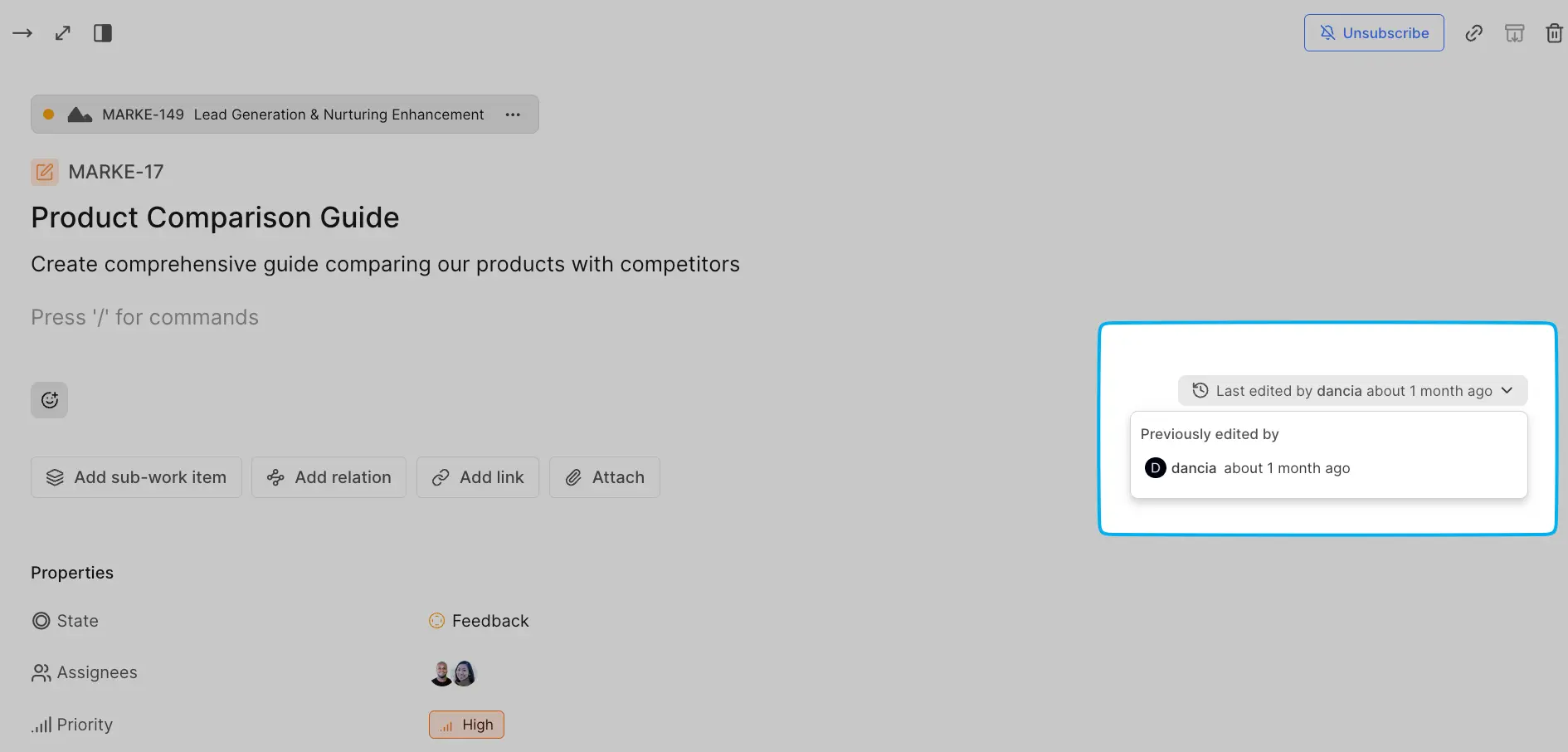
Clicking on the last edited timestamp reveals a dropdown panel showing the complete editing history, including:
- Who last edited the description
- When edits occurred
- A dropdown panel showing previous editors and timestamps
This addition improves transparency in collaborative projects by making it easy to see how work items evolve over time and who contributed specific changes.
Export work items Pro
You can export your work items to access and analyze your data outside of Plane. Exports support CSV and JSON formats, and you can filter exactly which work items to include.
This is useful when you need to create reports, perform external analysis, or share data with stakeholders who don't use Plane.
Learn more about custom exports.
Archive work items
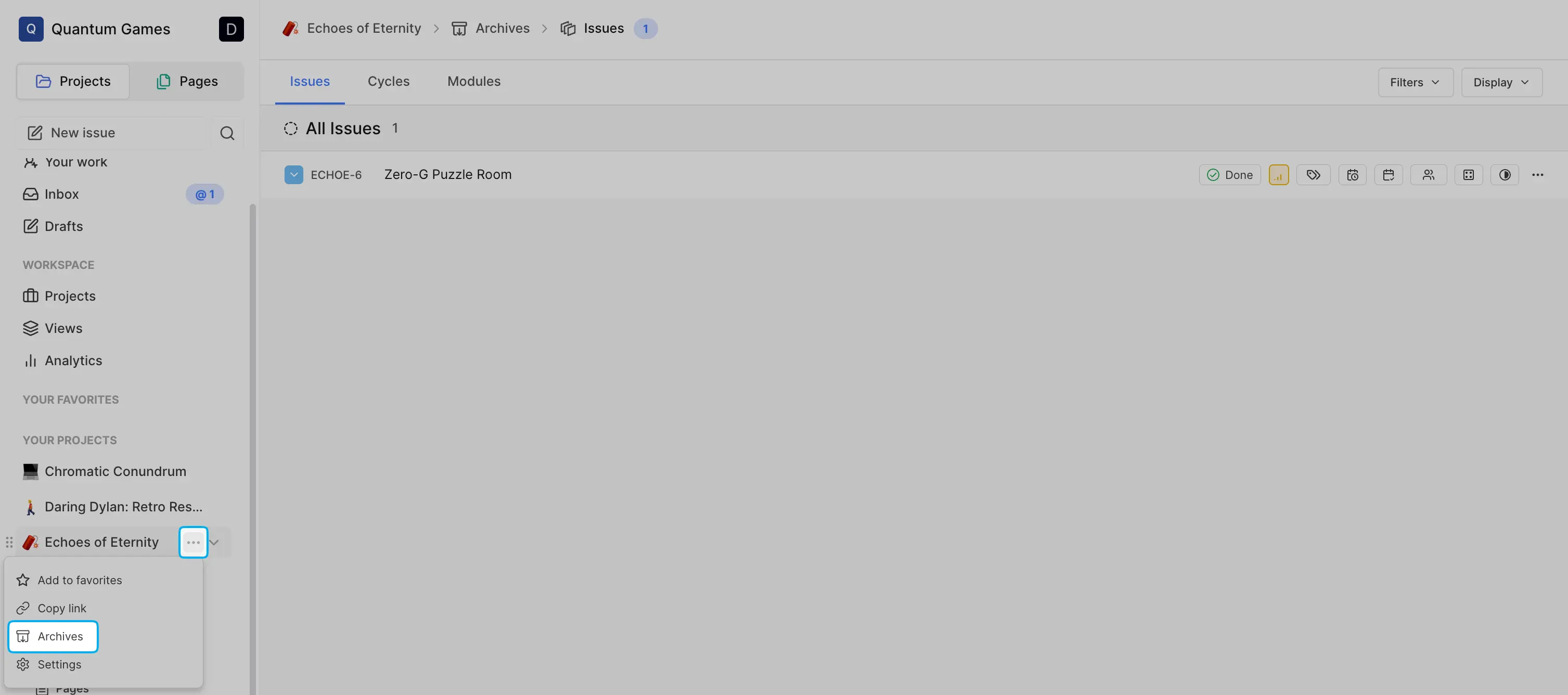
Completed or canceled work items can be archived, and automations can be set up to archive such work items. Archived work items can be found under the three dots menu next to your project name.
Delete work items
You can delete work items that were created accidentally or are no longer relevant to the project. Deleted work items cannot be recovered, so be sure to review them carefully before removal. Once deleted, the work item is permanently removed from the project.